
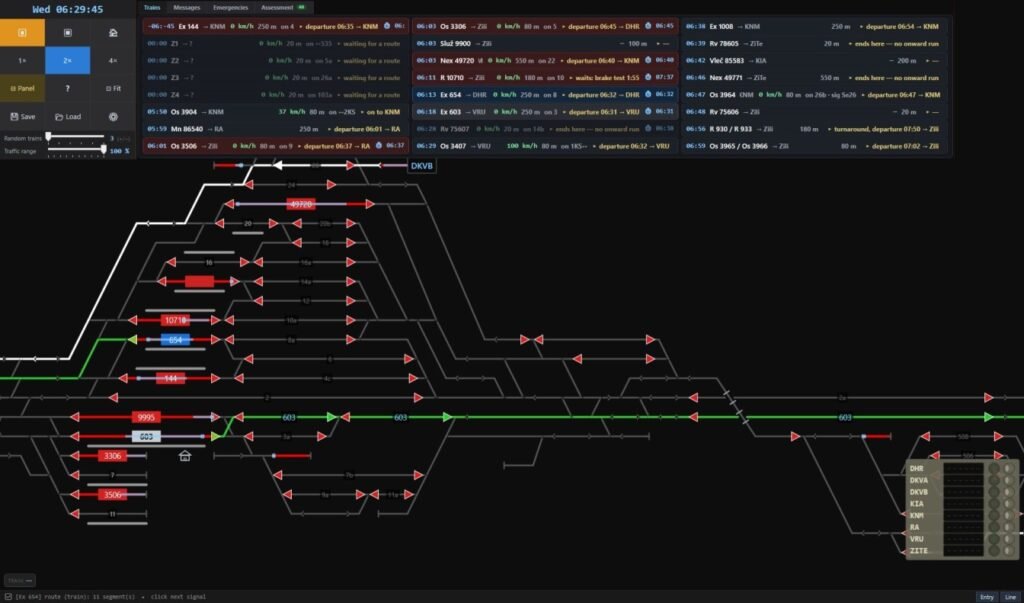
PrimeRailControl puts you in charge of railway traffic. You need to set routes, switch points, clear signals, and manage trains without causing conflicts on the tracks. The game uses railway signalling systems based on real-world practices, so you’ll need to learn a lot of controls to easily handle your station.
You can operate different interlocking panels, including relay interlocking, numeric-choice interlocking, and electronic systems based on Central European and German railway practices. The geometric control view also lets you manage trains directly from a track layout.
Why You Need This Prime Rail Control Guide
Prime Rail Control uses a mix of mouse controls, function keys, and Ctrl shortcuts. Some commands also depend on which train, signal, or track you point at, so knowing the right input can save you time while managing traffic.
Press H during a simulation to open the shortcut window. You can keep it open beside your control panel while learning the game.
The PrimeRailControl shortcuts guide below covers route setting, train information, dispatcher windows, shunting, locomotive handling, display settings, and multi-monitor controls. You can use them to manage trains faster without searching through menus every time.
Prime Rail Control Mouse Controls
You can start most railway operations with the mouse. To set a route, click the starting signal and then the destination. You can also use modifier keys with the mouse to select different types of routes.
| Input | Action |
|---|---|
| Left-click | Set a route by clicking the starting signal and destination. Click a train to select it. |
| Ctrl + Left-click on a signal | Set a shunting route instead of a train route. |
| Shift + Left-click on a signal | Set a manual route by tracing the path through the points yourself. |
| Alt + Left-click on a signal | Start the call-on signal procedure. Once granted, the route is built from the same signal. |
| Ctrl + Left-click on a shunting set | Start shunting on verbal order where no signal is available. Then click the destination track. |
| Right-click | Open the context menu for a signal or track. |
| Middle mouse button + Drag | Move around the control panel. |
| Mouse wheel | Zoom in or out. |
| Esc | Cancel a route in progress and hide track information and popups. |
Train Information and Station Shortcuts
Use these keys to check a train’s timetable, inspect tracks, and see what is happening across your station.
| Key | Action |
|---|---|
| F1 | Show the timetable of the train under the cursor, including stops and times. Over an empty track, show the trains booked on that track. Press again to hide. |
| F2 | Display information about the track under the cursor and the train occupying it. Press again to hide. |
| F3 | Open the station and track lists to check which trains are booked at the station and on each track. |
| G | Open the train graph, which displays the time-distance diagram in a separate window. |
| Ctrl + D | Open the marshalling yard view to check occupancy on sorting and directional tracks. |
Dispatcher and Station Controls
These shortcuts help you manage signals, track permissions, incoming trains, and the station you control.
| Key | Action |
|---|---|
| F4 or F7 | Open the dispatcher window for points, track consents, call-on signals, and faults. |
| Ctrl + H | Open the train entry consent window to approve trains entering your area. |
| Ctrl + U | Open the track consents window to manage direction consent for the line to a neighbouring station. |
| F5 | Choose the station you want to operate. The automatic dispatcher manages the other stations. |
| Ctrl + F5 | Turn the automatic dispatcher on or off. It is off by default. |
| + | Increase the number of random trains during the session. |
| − | Decrease the number of random trains during the session. |
Train Handling and Shunting Shortcuts
These commands affect the train or shunting set under your mouse cursor. Point at the correct train before pressing a key, or you may act on a different train than intended.
| Key | Action |
|---|---|
| F11 | Change a stationary train into a shunting set. It will leave the departure board. |
| F12 | Change a stationary shunting set back into a train. It needs a locomotive or powered unit. |
| F8 | Detach the locomotive. Useful for a runaround, moving a locomotive from the wrong end, or handling a train breakdown. |
| Shift + F8 | Detach the rear banking locomotive. |
| Ctrl + F8 | Split wagons by clicking the dots, counted from the tail. Available only when a wagon is damaged or the train has broken down. |
| F9 | Attach an adjacent set or wagons. |
| Alt + F5 | Reverse a stationary train in place. Works with multiple units, driving trailers, and push-pull sets only. |
| Shift + F5 | Divert a train. Direction checking remains disabled until it reaches the next station on its timetable. Press again to restore the normal setting. |
| Ctrl + N | Assign a number to the train under the cursor, such as a light engine or a set formed during the session. |
Numeric Route Selection Shortcuts
On relay desks and other panels that use numeric route selection, you can enter a route code directly from your keyboard.
| Key | Action |
|---|---|
| 0–9 | Enter the route code using the two-digit track number and point. |
| L / P | Select the throat (L or P). |
| Backspace | Clear the number you have entered. |
| Esc | Cancel the current selection. |
Departure Board and Display Shortcuts
Use these controls to change how trains, signals, and track layouts appear on your screen.
| Key | Action |
|---|---|
| Ctrl + B | Open the departure board. Switch between the next 90 minutes and the operational view for entry requests. |
| Ctrl + I | Show live rows on the modern board, including speed, position, and action. |
| Ctrl + T | Show or hide the exact position of each train, including its head dot and body. When disabled, the panel shows only track occupancy and the train number. |
| Ctrl + O | Show or hide automatic-block section signals. |
| Ctrl + J | Switch the interlocking panel between the original and new appearance. |
| Ctrl + L | Enter layout mode to move and resize screen elements. |
| Ctrl + Shift + L | Restore the default screen layout. |
| Ctrl + W | Adjust track thickness using the fine-tuning sliders. |
| Ctrl + G | Adjust the gap between panel strips. |
| Ctrl + P | Adjust the spacing between parallel tracks. |
| Alt + Enter | Turn full-screen mode on or off. |
Multi-Monitor Shortcuts
If you use multiple monitors, Prime Rail Control lets you spread the railway layout and supporting windows across your screens.
| Key | Action |
|---|---|
| Ctrl + M | Arrange connected sections of a long railway line across multiple monitors. |
| Ctrl + Shift + B | Move auxiliary windows to the side monitors. |
| Ctrl + F12 | Open the live load panel, which can help when reporting performance problems. |
Quick Tips for New Players
- Press H to check shortcuts: Keep the shortcut window open while learning the controls.
- Check which train is under your cursor: Most train commands affect the train directly beneath the mouse pointer.
- Use F1 and F2 for information: F1 helps with timetables, while F2 shows track and train details.
- Use F4 or F7 for dispatcher tasks: These windows give you access to points, track consents, call-on signals, and faults.
- Press Esc when you need to cancel: This cancels the route you are currently building and hides track information and pop-ups.
The status bar at the bottom of the screen tells you what happened after a command or why the game refused it. Check that message if a route or train operation does not work as expected.