
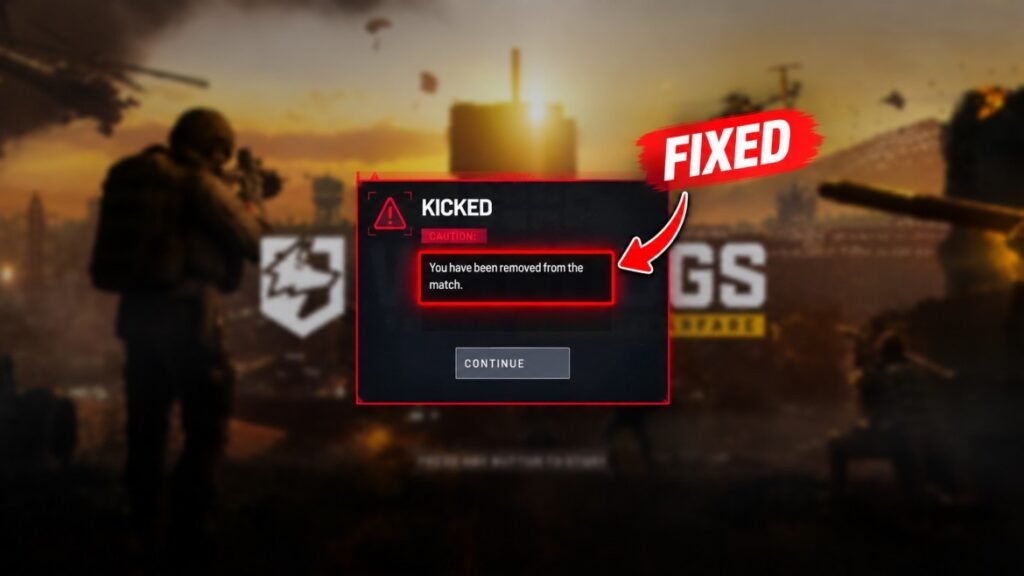
WARDOGS bugs and glitches don’t seem to be ending anytime soon. When the game first launched, some players were getting the 1147405308 Error, and now players are encountering another WARDOGS KICKED error during matches.
This time, players are seeing “You have been removed from the match” and getting kicked out mid-game. They can matchmake without any problem, but after playing for a few minutes, they suddenly get disconnected and see the error message on their screen.
Even after reconnecting, the same error can trigger again. In some cases, the server list may also stop finding any servers.
If you are also getting this error and want to fix it in easy steps, then this guide is for you.
How to Fix “You have been removed from the match” in WARDOGS
This error can be fixed by changing the DNS settings and checking whether Windows is properly synchronizing its system time. Here is how to do this.
Fix 1: Change Your DNS Settings
Changing your DNS is optional, but it can help if your connection is having trouble communicating with online services.
Open Windows Settings and go to Network & Internet. Select your active connection, either Ethernet or Wi-Fi.
Find DNS server assignment and click Edit. Change the setting to manual and enter these values:
- Preferred DNS:
1.1.1.1 - Alternative DNS:
1.0.0.1
Save the changes and start WARDOGS again.
Fix 2: Check Windows Time Synchronization
The time shown by Windows can look normal even when the Windows Time service is not properly synchronized.
Press Win + R, type cmd, and open Command Prompt as Administrator.
Run this command:
w32tm /query /statusCheck the Source in the result.
If it shows Local CMOS Clock or the system is not synchronized, move on to the next step.
Fix 3: Force Windows to Sync With an External Time Server
Keep the Administrator Command Prompt open and enter the following commands one by one.
First, configure Windows to use the NTP pool and Google’s time server:
w32tm /config /manualpeerlist:"pool.ntp.org time.google.com" /syncfromflags:manual /update
Now stop the Windows Time service:
net stop w32time
Start the service again:
net start w32time
Then force Windows to synchronize instantly:
w32tm /resync
Wait for the command to finish before checking the status.
Check the Time Sync Status Again
Run the status command once more:
w32tm /query /status
Check the Source and synchronization information.
If the source now shows an external server such as pool.ntp.org and Windows reports that it is synchronized, the time synchronization issue has been fixed.
Start WARDOGS and try joining a match again.
If you are also looking for the exact explosive requirements in WARDOGS, check our Wardogs Explosives Cheat Sheet to see how many explosives you need for different doors, walls, FOBs, and other targets.
What to Do If the Sync Commands Don’t Work
If Windows still cannot synchronize with the time server, make sure to change your network connection before running the commands again.
If you are using Ethernet, connect the cable to a different port on your router. You can also try another Ethernet cable if you have one available.
After changing the connection, open Command Prompt as Administrator and repeat the commands from Fix 3.
The above methods can easily help you if WARDOGS keeps removing you from matches without any obvious reason. The DNS change can help with connection issues, while checking the Windows Time service can fix synchronization problems that may not be obvious from the system clock.